

People who don’t have a windows based system and can’t download the Velocity Trader desktop platform will need to use the web-based platform. This platform is just as good as the desktop app, but cannot load a pre-saved workspace. In the guide below, we will show you how to easily set up your workspace in order to start trading.
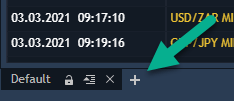
1. Add a new Workspace by clicking on the + sign (bottom left)
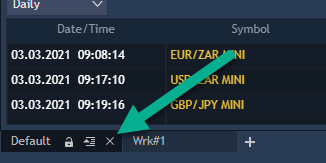
2. Once you’ve added a new workspace, you can exit the “Default” workspace.
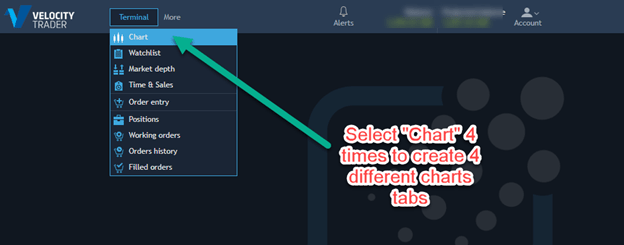
3. Once you have a blank workspace, Click on the “terminal” menu on the top left and select Chart. Do this 4 times to create 4 different chart tabs.
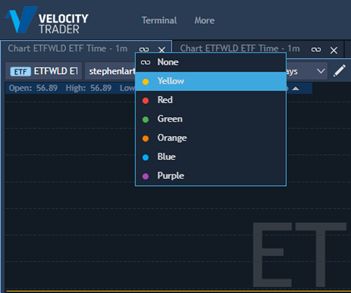
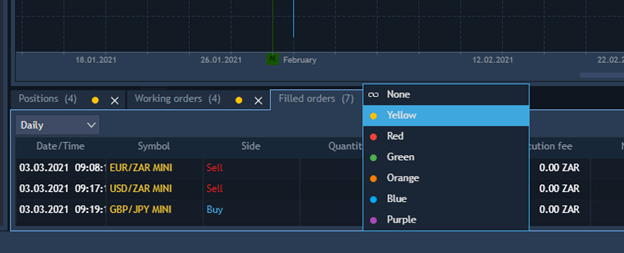
4. On each tab, choose a colour by clicking on the “link” icon. Choose the same colour on each tab so that they are all linked together.
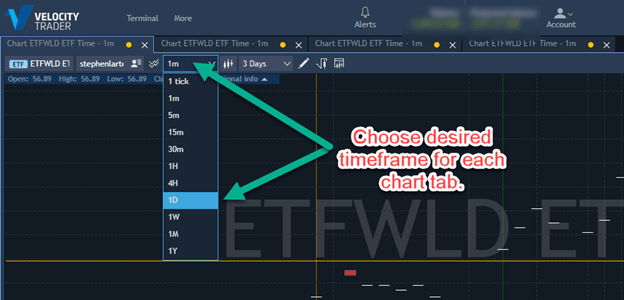
5. Choose the desired timeframe for each chart tab by clicking the dropdown menu where it says 1m by default. I would recommend using the following timeframes for each separate chart: 1D; 4H; 30min; 5min. You can always change these at a later stage if you wish.
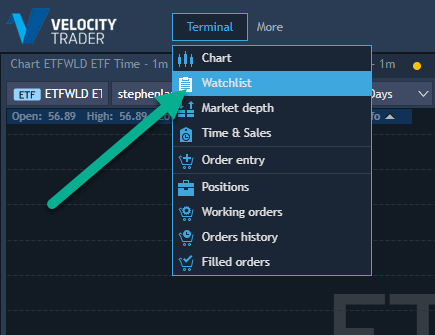
6. Add a Watchlist by clicking Terminal > Watchlist
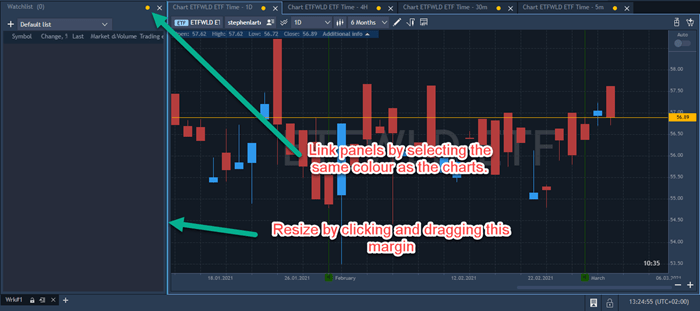
7. Once added, remember to link the panels by selecting the same colour as the chart panels. You can also resize this pane by clicking and dragging in the vertical margin.
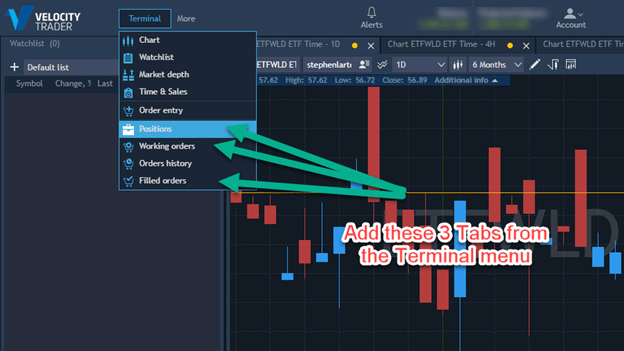
8. Add Positions, Filled Orders and Working Orders tabs by selecting them from the Terminal Menu.
9. Remember to link all tabs with the same colour.
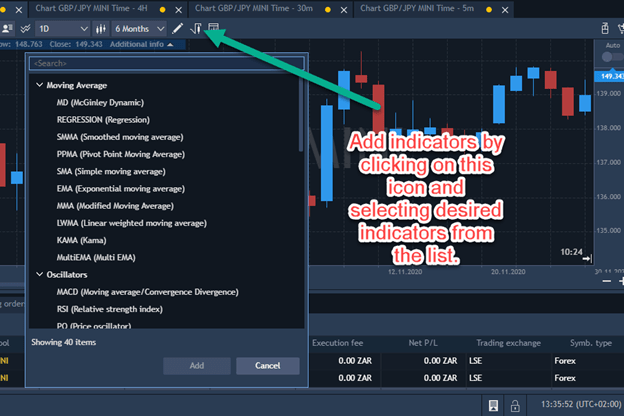
10. Add your desired indicators by clicking on the “Add Indicator” button which is a square root sign over a candlestick. I suggest you add the MACD, Stochastic and 2 EMA’s of values 3 and 15. This will need to be done on each individual chart tab.
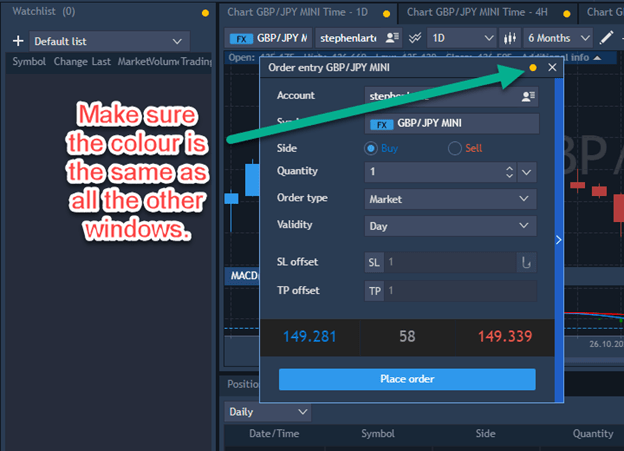
11. On the web based platform, the order entry is a separate floating window that you can access from the Terminal menu. Once opened, be sure to link it to all of the other windows by selecting the relevant colour.
12. Rename your workspace.
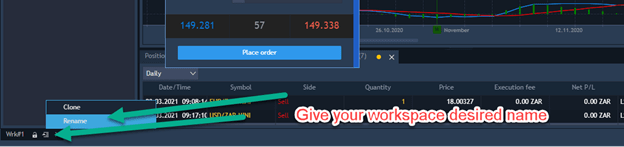
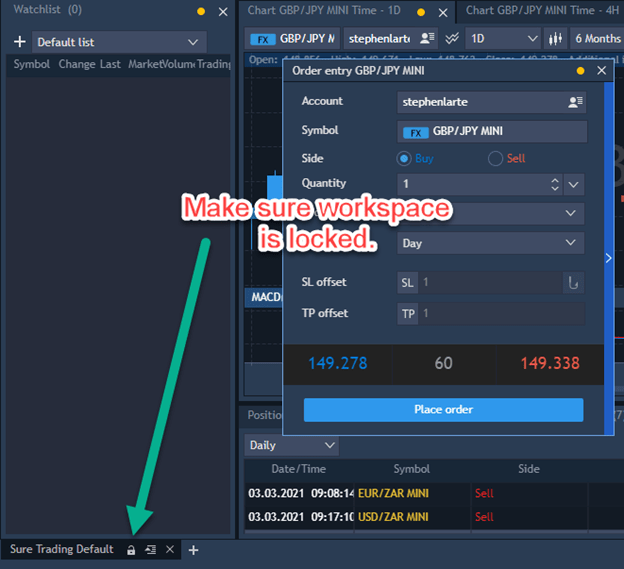
13. Lastly, lock your workspace so that you don’t accidentally exit any of the windows.
Side note: If you would like to change the colours of the candlesticks, you can do this by right clicking on the chart and selecting “Settings” and then choosing the desired colours.
If you are having any problems with any of these concepts, please don’t hesitate to contact us via our main website on http://www.suretrading.co.za
 /Blog
/Blog 